Features
Features
Hover Translate is designed around short reading interruptions: pick a block, read the translation, and keep moving. Translation runs through Chrome’s built-in on-device Translator API.
Free on-device translation
- No DeepL, Google, Azure, or other external translation account is required.
- No API key is stored.
- No character quota is tracked by the extension.
- Chrome may download language packs on first use.
Two translation modes
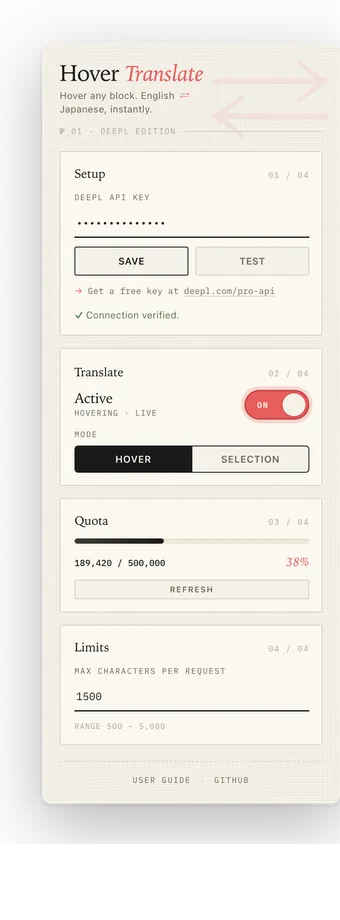
Hover mode
In Hover mode, moving the cursor over a paragraph triggers a translation automatically after a short delay.
- Hover any supported block element: paragraph, list item, heading, table cell, and similar text blocks.
- After a 300 ms debounce, the extension checks that the cursor is actually over text.
- The translation appears in a floating tooltip anchored to the block.
- Leaving the block hides the tooltip.
Selection mode
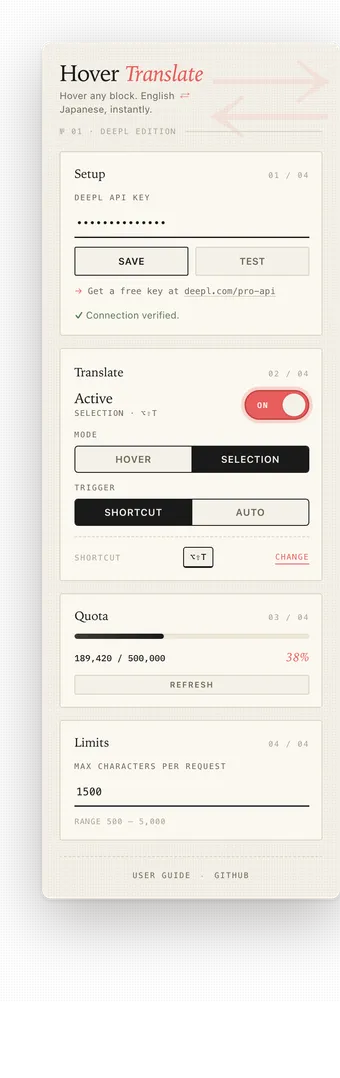
Selection mode translates only highlighted text.
- Shortcut: press
Alt+Shift+Twhile text is selected. - Auto: translate automatically after mouse release.
Clearing the selection dismisses the tooltip.
Automatic language direction
Hover Translate decides the translation direction from the text itself.
- Text containing Japanese characters is translated Japanese → English.
- Other text is translated English → Japanese.
- You do not need to choose the source language manually.
Block-level detection
In Hover mode the extension looks for the nearest paragraph-like ancestor of the element under the cursor.
- Native targets include
p,li,h1toh6,td,th,blockquote,figcaption,dd, anddt. - Documentation sites that do not use native
<p>elements are also supported, including Mintlify ([data-as="p"]), Twitter/X tweet text, and Notion public pages. - If no known selector matches, the extension falls back to the nearest block-level ancestor with a reasonable amount of text.
In-page tooltip
Translations appear in a floating tooltip positioned close to the source text.
- Hover mode anchors the tooltip to the hovered block.
- Selection mode anchors the tooltip to the selection rectangle.
- The tooltip flips vertically near the viewport edge.
- A copy button copies the current translation to the clipboard.
- Error tooltips use a red left border and show the mapped error message.
Translator session cache
The content script keeps a Translator API session per language direction while the page is loaded. Repeated translations reuse the same English → Japanese or Japanese → English session until the page unloads.
Keyboard shortcut
The default shortcut is Alt+Shift+T, dedicated to Selection mode.
- In Selection + Shortcut mode, the shortcut translates the current selection on demand.
- In Hover or Selection + Auto mode, the shortcut does nothing.
- Change the key combination from the Change link in the popup.
Max character guardrail
Very large blocks are stopped before translation starts.
- The default limit is 1500 characters.
- You can change the limit from 500 to 5000 characters in Settings.
- When a block or selection exceeds the current limit, the content script shows
Text too long.